Headings are not structured
This section includes an example of unstructured headings.
This text is a Heading 2 (H2)
This is the highest level heading available in the content of the page. The page title is a Heading 1 by default.
This text is a Heading 4 (H4)
By going from an H2 to H4 heading, we have skipped a level: H3. This will cause issues for those using assistive technology like screen readers.
Do not use headings for stylistic purposes (i.e., for the size of the text on the page). Proper heading nesting structures must always be followed to avoid accessibility issues.
Headings should be properly nested (H2)
Relevant content under Heading 2.
Then Heading 3 (H3)
Relevant content under Heading 2.
Then Heading 4 (H4)
And so on.
Content Missing After Heading
This issue can occur there is no relevant content between headings of the same level, like the title above and this text. (H2)
This causes an issue because headings are meant to introduce content. If there is a heading with no content under it, a person using assistive technology may be confused as to why they can't access the content the heading is supposed to introduce.
When using headings, make sure that there is relevant content that the heading introduces (H2)
If there is no content to go under the heading, reconsider: does the text need to be a heading? If it does not introduce content, consider using the Styles dropdown instead.
This option allows you to transform the look of text without using heading styles.
This text has been altered using the Styles dropdown menu. While it stands out on the page, is still classified as paragraph text and does not cause issues for assistive technology.
Empty Headings
This issue occurs when there is a heading tag, but there is no text associated with that tag. This issue could occur when a heading style is selected, then a web editor hits the return key to create a space on the page.
The space above is an empty heading. A screen reader would announce to a user that there is a heading here, but that heading has no text associated with it for the screen reader to read.
This issue is also easily visible in the source code. In the highlighted text below, you can see that there is the Heading 2 tag <h2>, but no content. Delete the unused heading tag to fix the issue.
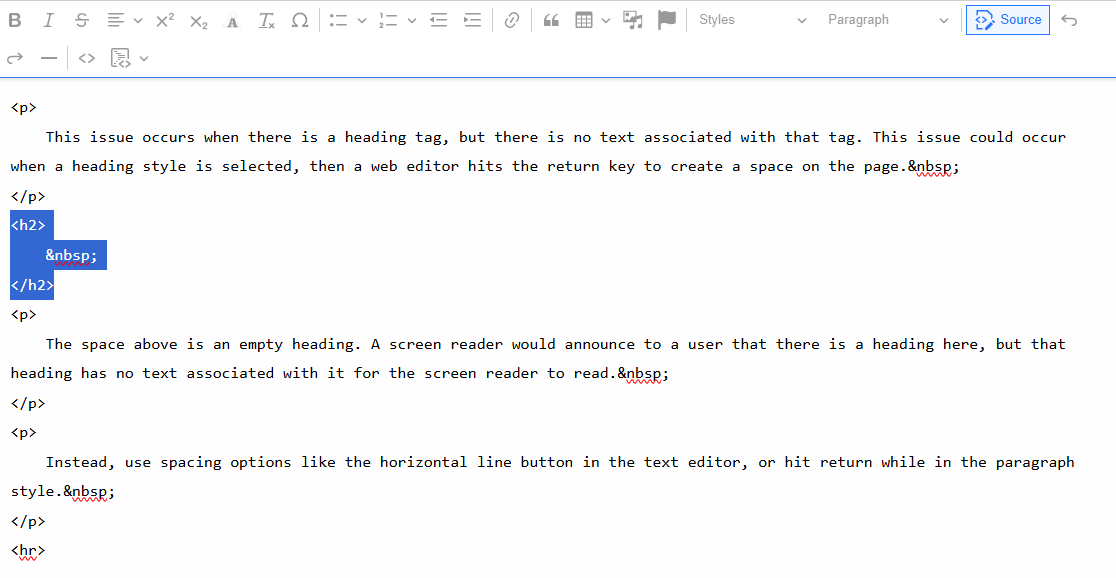
Instead, use spacing options like the horizontal line button in the text editor, or hit return while in the paragraph style.
Table Cell Missing Context
When creating tables, make sure that each column and row have assigned table headers and labels.
| Date | Opponent | Final Score |
|---|---|---|
| August 30 | UAlbany | 34-7 |
| September 6 | Iowa State | 13-16 |
While sighted users may be able to infer the meaning of this table based on the position of the information, people using assistive technology need tables to be properly labeled in order to navigate through the information effectively.
Add heading text to each column of the table and mark the top row as a header row. Additionally, add a caption for further description of the table.
| Date | Opponent | Final Score |
|---|---|---|
| August 30 | UAlbany | 34-7 |
| September 6 | Iowa State | 13-16 |
No data cells assigned to table header
Similarly to the issue above, tables can also cause accessibility issues when there is no data in a cell under an assigned table header.
| School Menu | Monday MLK Jr. Day - No school | Tuesday | Wednesday | Thursday | Friday |
|---|---|---|---|---|---|
| Spaghetti and meatballs | Grilled cheese and tomato soup | Burgers | Pizza |
The empty cells below School Menu and Monday would cause an issue because there is no content under the heading row.
To fix this issue, either add content to the table cell, or remove the header that has no content beneath it.
| Monday | Tuesday | Wednesday | Thursday | Friday |
|---|---|---|---|---|
| MLK Jr. Day - No school | Spaghetti and meatballs | Grilled cheese and tomato soup | Burgers | Pizza |
Image is missing a text alternative
The image below presents an issue because it does not have a good alt text description. People using screen readers rely on alt text to describe an image to them. When uploading an image to your site, it is required to have alt text or to be marked as decorative. It's important that alt text with an image is helpful and accurately describes what the image is meant to convey in the page's context.

Examples of meaningful alt text for this image:
If this image were used in an article discussing the history of the Pentacrest and its buildings: "The Old Capitol building sits at the top of the grassy hill known as the Pentacrest."
If this image were used in an article talking about fall colors on campus: "A maple tree is covered in bright orange leaves as autumn comes to the Pentacrest."
Visit the Harvard University page on writing helpful Alt Text for more tips.
Link is missing a text alternative
This issue occurs when a hyperlink is created and there is not text that describes where the link is leading. This can happen when a link is added to an image that is marked as decorative, or when a space is included before or after linked text:
Visit the Accessibility at Iowa site
The highlighted space above links to a different page than the linked text before it. That link does not have any text that describes it, creating an issue for all users on the site. To fix, delete the linked space after the text and ensure that the linked text properly describes the link.